
In short: You can now add a payment to Mera Kharcha just by speaking. Tap Speak on the Mera Kharcha notification, say something like “sent 150 rs to Rahul using Paytm” — in Hindi, English, Hinglish or your own language — and it's recorded. You never open the app. It's built for the payments your bank never texts you about: cash, wallet payments, the ₹200 you handed a friend for dinner.
The Payments That Never Made It In
Mera Kharcha has always worked by reading the transaction SMS your bank sends. For most people that covers the big stuff — UPI, cards, EMIs, salary — without lifting a finger.
But you know the ones it can't see.
The ₹60 chai-and-samosa you paid in cash. The ₹300 you gave the maid's son for his school trip. The ₹150 you sent Rahul from a wallet balance, so no bank SMS ever arrived. The auto fare. The sabziwala who still doesn't take UPI. Your share of the petrol, handed over in notes at the pump.
Each one is small. Each one you meant to add “later.” And “later” is where expense tracking goes to die — because by evening you remember about half of them, and by next week you remember none.
So the month ends, the app says you spent ₹31,000, and you know it was more. The number stops feeling true, and a number you don't trust is a number you stop looking at.
Why “I'll Add It Later” Never Works
It's not laziness. Adding an expense by hand is a surprising number of steps: unlock the phone, find the app, wait for it to load, tap add, type the amount, pick a category, type a note, save. Maybe twenty seconds. That sounds like nothing until you're standing at a counter with a bag in one hand and change in the other.
Twenty seconds at the wrong moment is the same as never.
The fix isn't more discipline. It's making the effort so small that it fits into the exact moment you pay — before you've even put your phone back in your pocket.
How It Works: Tap Speak, Say It, Done
Mera Kharcha's notification now has a Speak button. That's the whole feature, and that's the point.
- Pull down your notifications and find Mera Kharcha.
- Tap Speak.
- Say what you paid, the way you'd tell a friend: “sent 150 rs to Rahul using Paytm.”
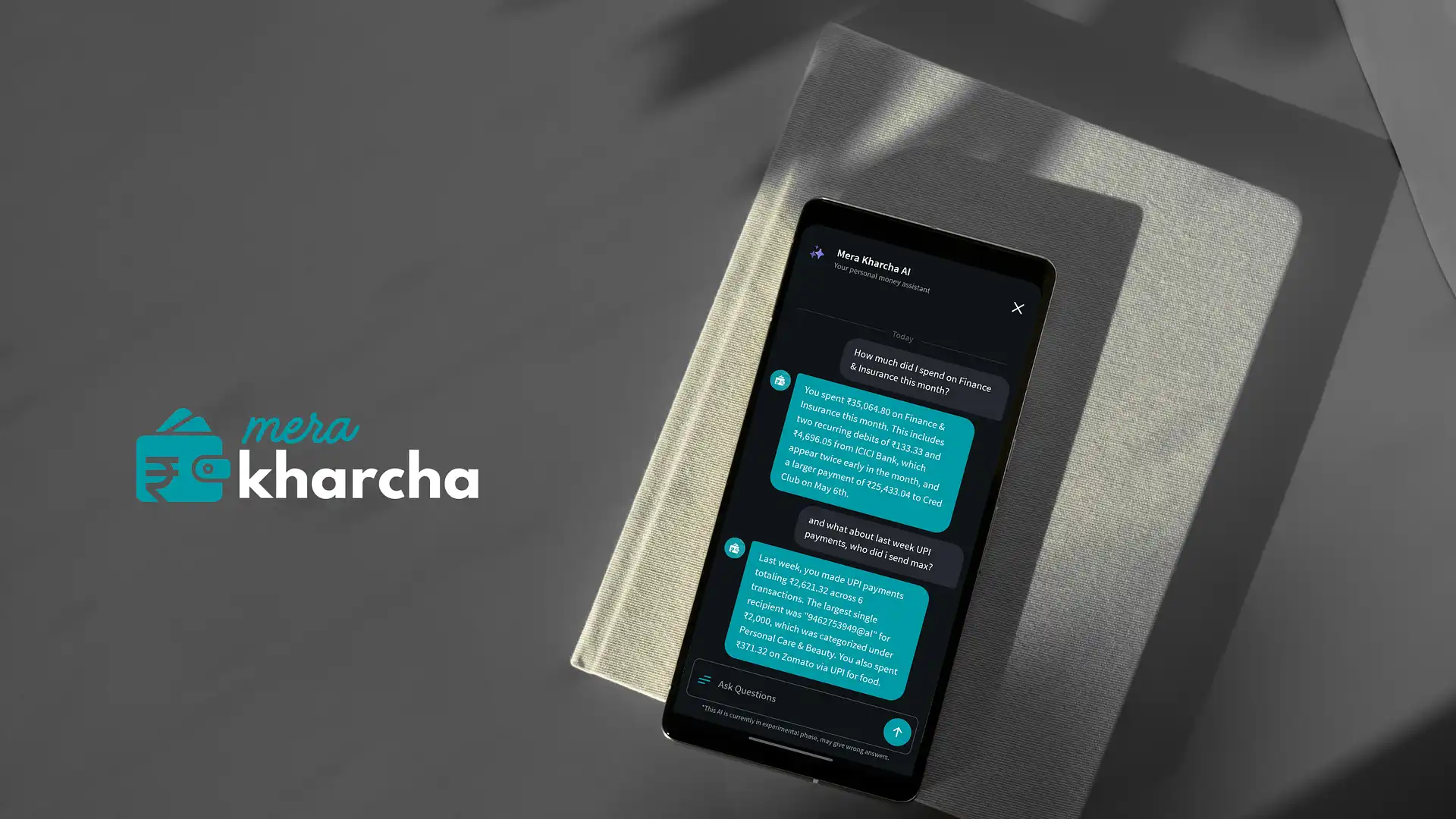
That's it. Mera Kharcha picks out the amount (₹150), who it went to (Rahul) and how you paid (Paytm), and records the payment. It shows up in your transactions next to everything the SMS reader already caught, counted in your monthly total, available to the AI Assistant when you ask where your money went.
You didn't open the app. You didn't type anything. You didn't choose from a dropdown. The whole thing took less time than reading this paragraph.
Say It in Your Language, Not the App's
Most of us don't think about money in textbook English. We think “Rahul ko 150 bheje”. We think in Hindi, in Tamil, in Marathi, in Bengali, in a mix of three languages in one sentence. An expense tracker that only understands one tidy form of English quietly asks you to translate yourself every time you use it.
So you don't have to. Speak the way it comes out:
- “Sent 150 rs to Rahul using Paytm”
- “Rahul ko 150 Paytm kiye”
- “Sabzi wale ko 80 cash diye”
- “Paid 450 for petrol in cash”
- “Auto ke 60 rupaye”
Hindi, English, Hinglish, or your own language — same result. The amount, the person and the payment method are what matter, and you can say them in whatever order and whatever words feel normal to you.
Where This Actually Helps
Cash-heavy days. Weekly market, a family function, a trip to your hometown where half the shops still work in cash. Say each one as you pay and the day's spending is complete by the time you're home.
Wallet and gift-card payments. Money spent from a wallet balance often never generates a bank SMS. Speak it in, and it stops being invisible.
Shared expenses. You paid the whole dinner bill and three friends sent their share. Or someone else paid and you handed them your part in cash. Either way, one sentence keeps the record honest.
Parents and grandparents. For people who find typing on a phone a chore, speaking is simply easier. If your mother tracks household spending, this is the version she'll actually use.
Driving, carrying bags, holding a child. Any moment where your hands are busy and your memory is going to fail you by evening.
The Point Is a Number You Can Trust
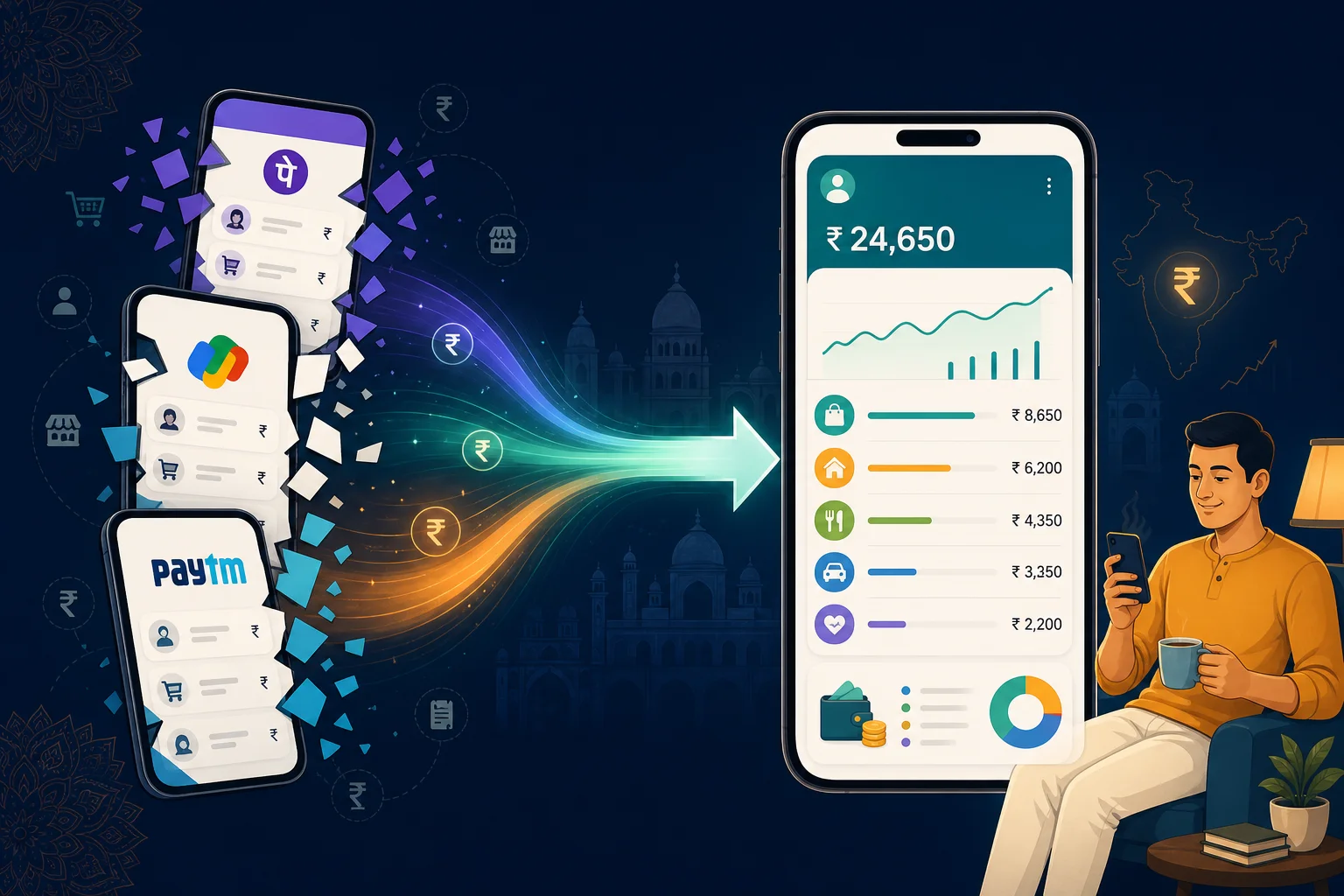
Automatic SMS tracking covers the majority of what you spend. Voice entry covers the rest. Put together, the total at the end of the month is finally the total — not “the total plus some cash I don't remember.”
That matters more than it sounds. When the number is complete, you believe it. When you believe it, you actually look at it. And looking at it — honestly, once a week — is most of what good money habits come down to.
Mera Kharcha is free on Android. It still reads your bank and UPI SMS on your phone, still needs no bank login, and the AI Assistant still answers questions about your spending in plain language. Now, for everything the SMS never saw, you can just say it.
Try Voice Entry — Free on AndroidA Few Tips for Best Results
- Say the three things: the amount, who or where, and how you paid. “200 to Priya by cash” is perfect.
- Keep it to one payment per sentence. Two quick taps beat one long story.
- Say it right after you pay. The whole feature is designed around that moment — use it before you forget.
- Glance at it later if you like. The payment sits in your transaction list, and you can open it and fix anything the app misheard.
Common Questions About Voice Expense Entry
How do I add an expense by voice in Mera Kharcha?
Tap the Speak button on the Mera Kharcha notification on your phone and say the payment the way you'd tell a friend — for example, “sent 150 rs to Rahul using Paytm”. The app picks out the amount, who you paid and how you paid, and records it. You don't need to open the app.
Can I add expenses by speaking in Hindi or my own language?
Yes. You can speak in Hindi, English, a Hindi-English mix, or your own language. Say it the way it comes naturally — “Rahul ko 150 Paytm kiye” works just as well as “sent 150 rs to Rahul using Paytm”.
Why would I add a payment by voice if Mera Kharcha already reads bank SMS?
Because not every payment sends an SMS. Cash, wallet payments, money you hand someone for a shared bill, or a payment made from someone else's phone never reach your bank inbox. Voice entry is the fastest way to close that gap, so your monthly total reflects what you actually spent — not just what your bank saw.
Do I have to open the app to record a payment by voice?
No. The Speak button lives on the notification, so you can record a payment from your notification shade in a few seconds without opening the app. The payment then shows up in your transactions like any other.
What if the app hears something wrong?
The recorded payment appears in your transaction list, where you can open it and correct the amount, name or payment method. Short, clear sentences with the amount, the person or shop, and the payment method work best.